Technical
tutorial

Learn how to install, set up, and use Simulacro to simulate directing and production workflows in collaborative virtual environments.


Follow our step-by-step guide from different devices to get the most out of the tool.

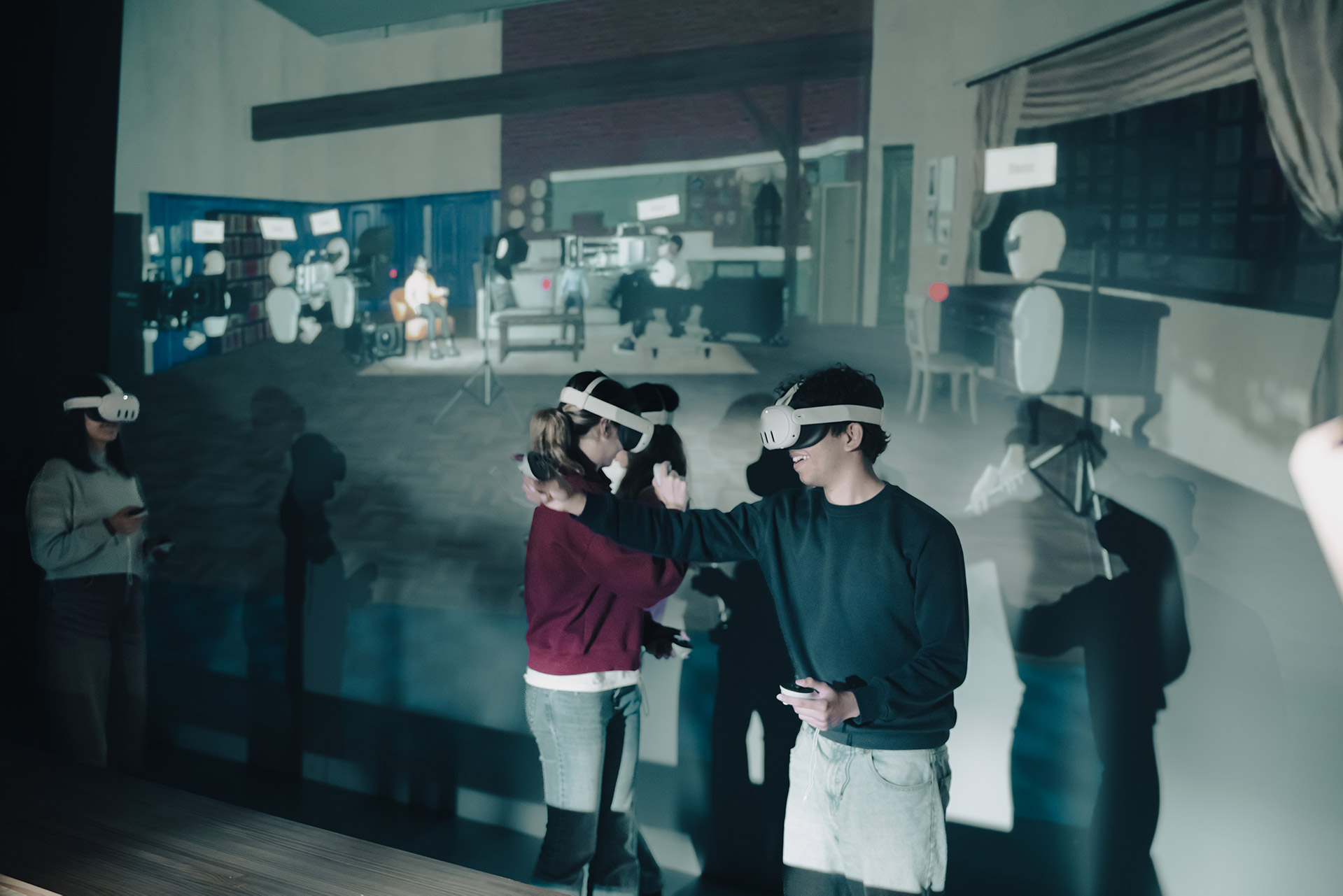
Simulacro includes an interactive tutorial that walks you through the controls and core features.

This page also provides all technical information you need: from downloading and installing to adjusting every camera and lighting parameter

Download
  1.  Open the beta-channel link you received. You can do so from your smartphone browser, computer, or directly in your Meta Quest headset.
  2. A Meta (Oculus) page will display the button “Join the beta.” Tap it to access the test version.
  3. Install the app using one of two options:
 
🔹 Option 1: From the Meta Quest mobile app:
Open “Meta Quest,” go to Library, find the app, and tap Update or Install.
 
🔹 Option 2: From the headset:
Open the Store, search for the app, and tap Install or Update if you are already in the beta channel.
 
4. Once installed, open the app in the headset and enjoy the beta version.

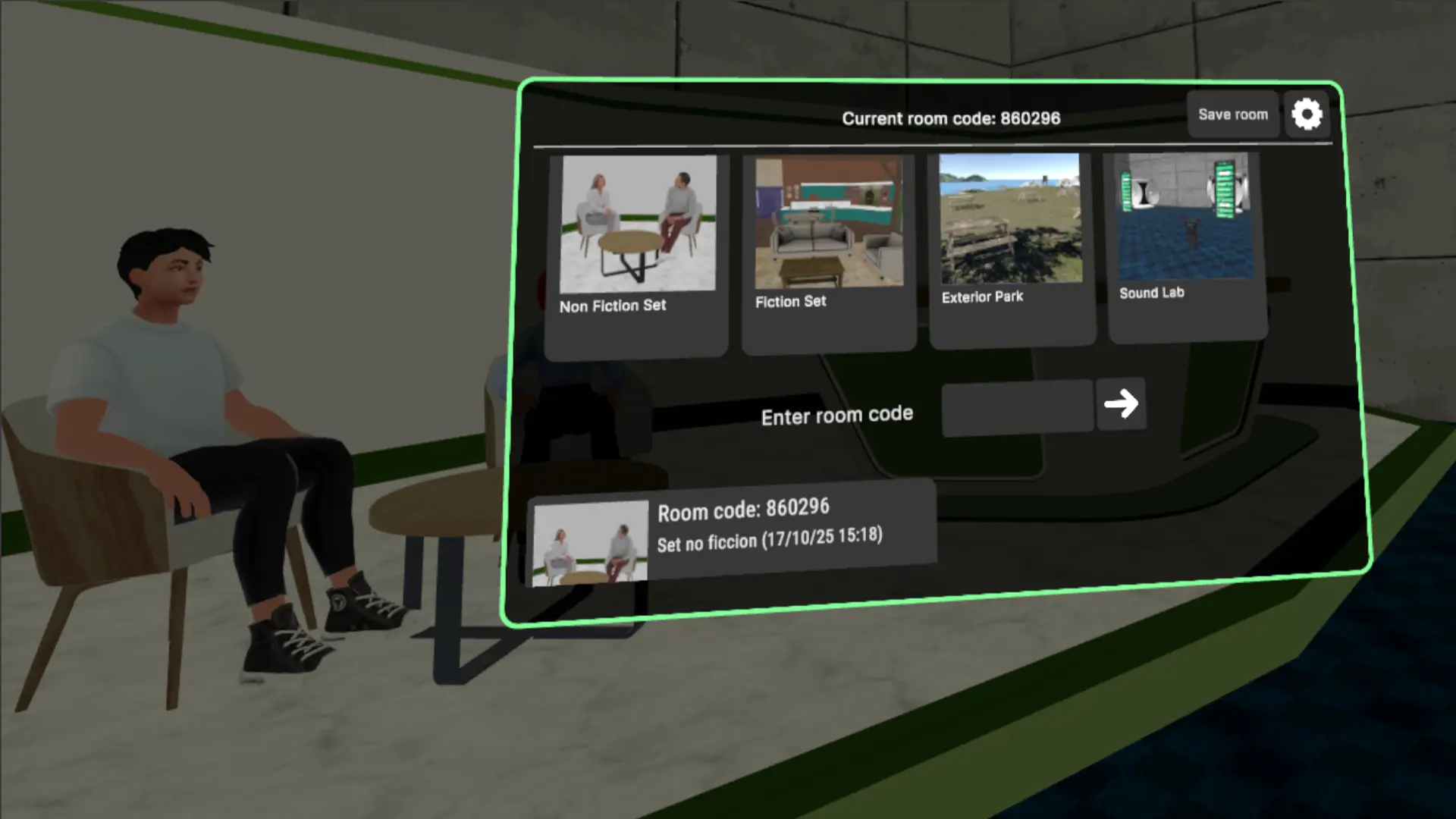
Simulacro uses dynamic instances to save and recall your customized setups. Each instance stores camera positions, lighting configurations, and set elements so you can return to them or share them with others.


How to create an instance

  • Open the instances menu using the X button on the left controller.
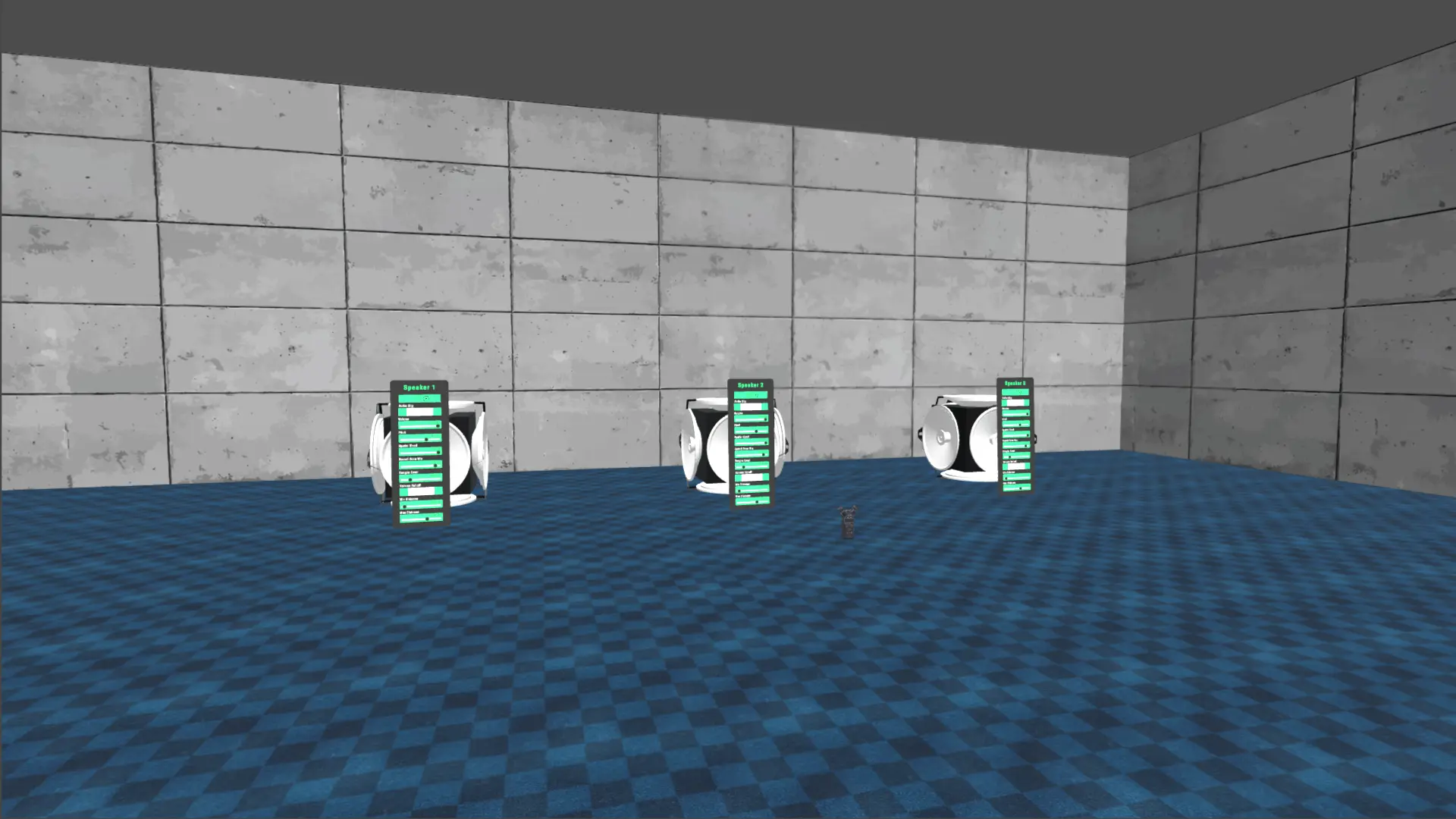
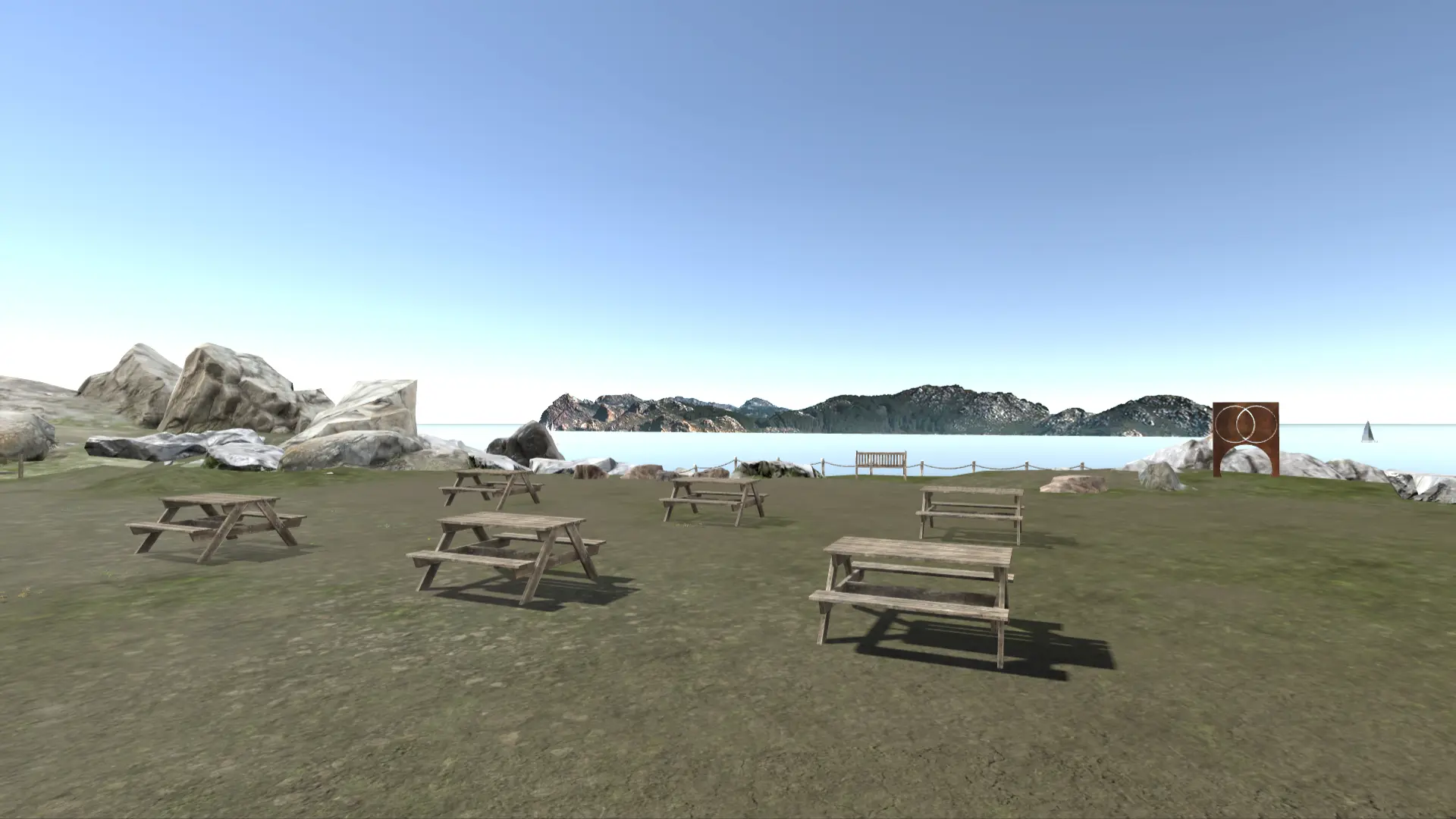
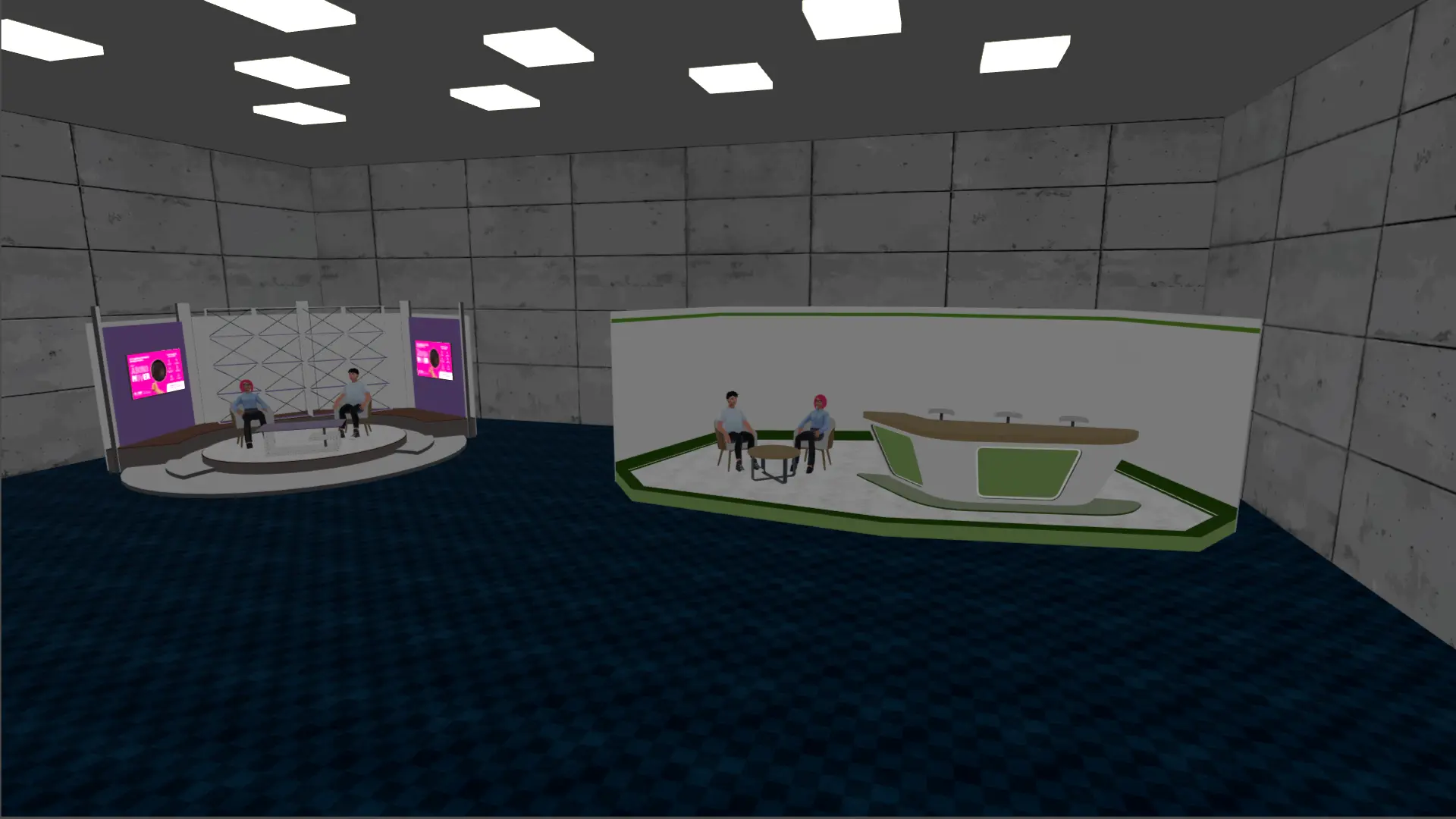
  • Select a base scenario: Non Fiction Set, Fiction Set, Exterior Park, or Sound Lab.
  • Customize the scene.
  • Press Save room to generate a unique room code for your configuration.
 

Share or access an instance
Share the room code so others can load your exact setup. To join an instance, enter the code and confirm.


Saved-instance management
Your list of saved rooms appears at the bottom of the menu, with name, preview image, and creation date.


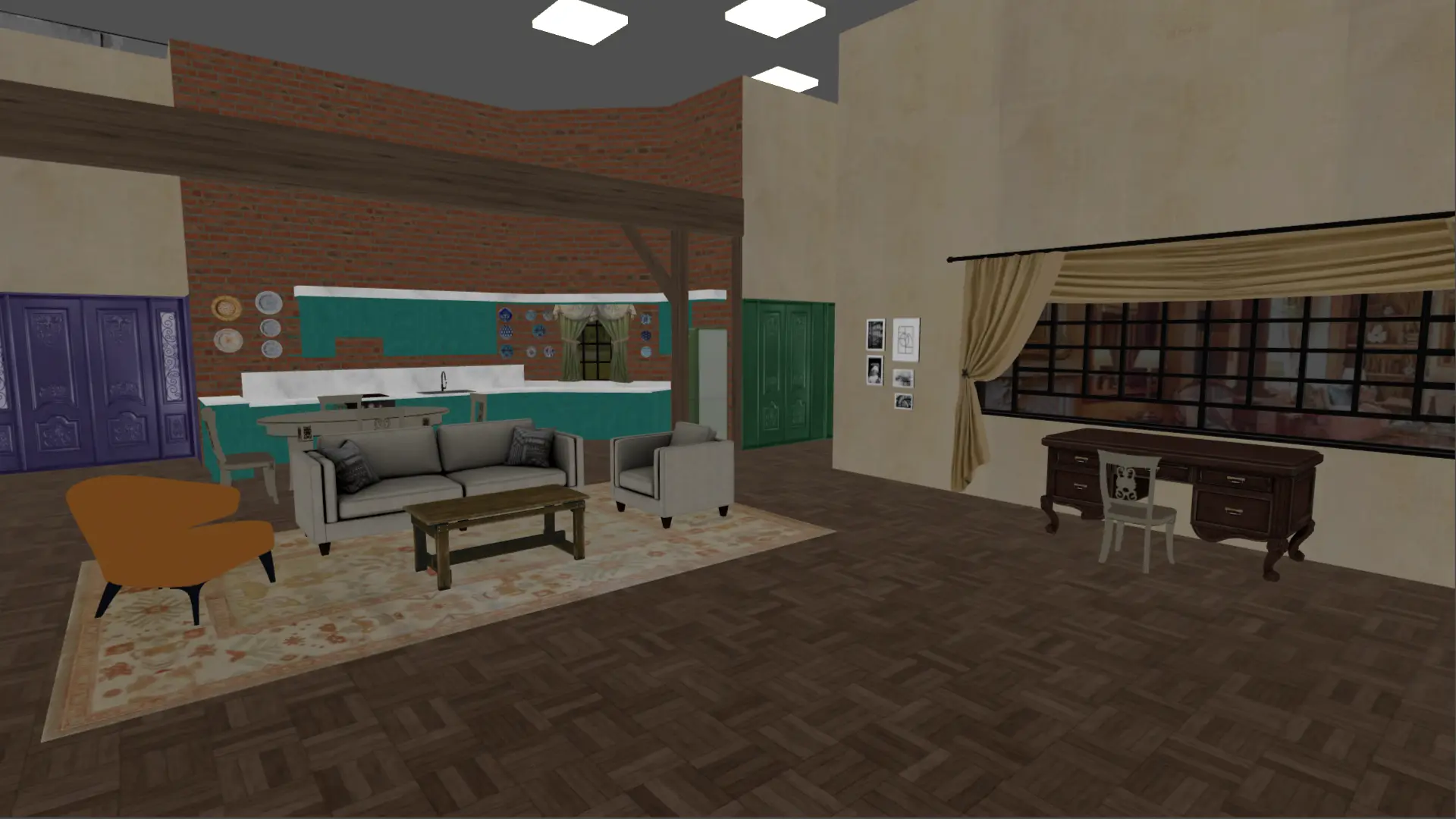
imagen de las diferentes instancias ingame de simulacro VR

When launching Simulacro, you appear in a lobby from which you can open the scenes menu at any time with the X button. Each scene is designed for different recording needs.


Available scenes:

  • Non Fiction Set: Designed for interviews, talk shows, and studio programs.
 
  • Fiction Set: A versatile interior space for narrative scenes or acting rehearsals.
 
  • Exterior Park: An outdoor environment with dynamic sunlight changes.
 
  • Sound Lab: An acoustic lab for experimenting with sound sources.
 

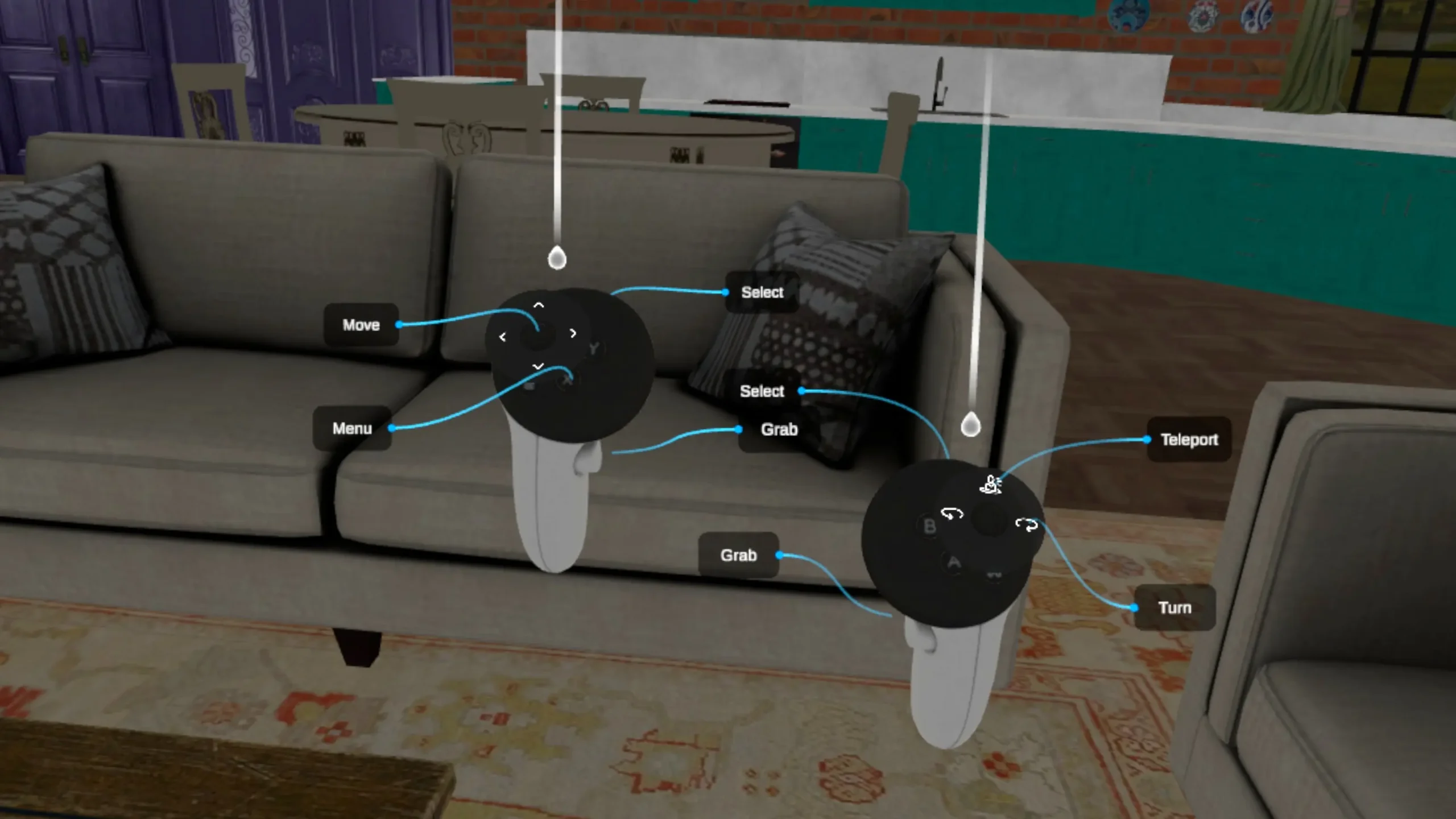
Left Controller (Movement & Menu)

  • Move
  • Menu
  • Select


Right Controller (Teleport & Grab)

  • Teleport
  • Turn
  • Grab
  • Select
 
Interfaz de los controles en simulacro VR

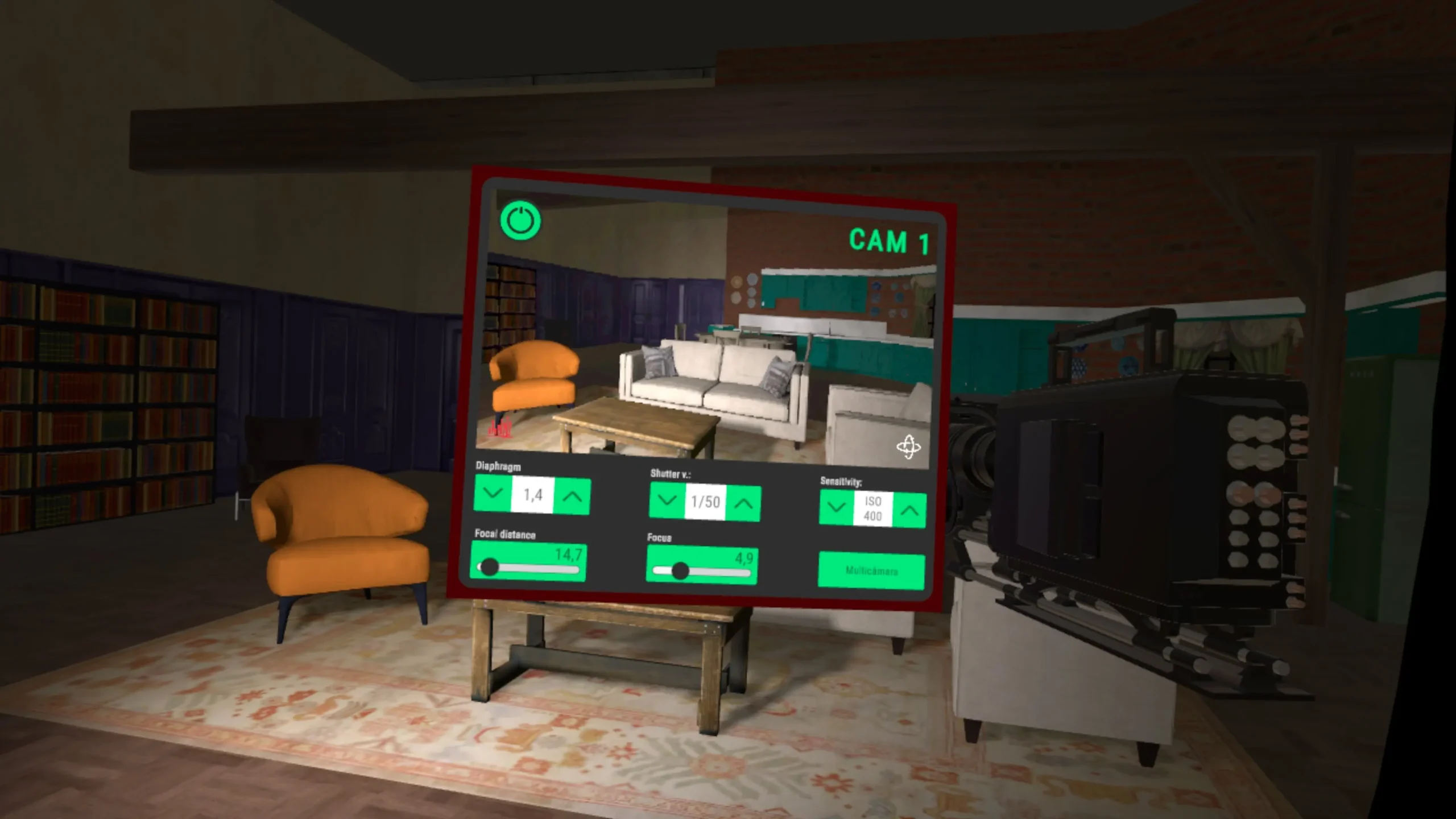
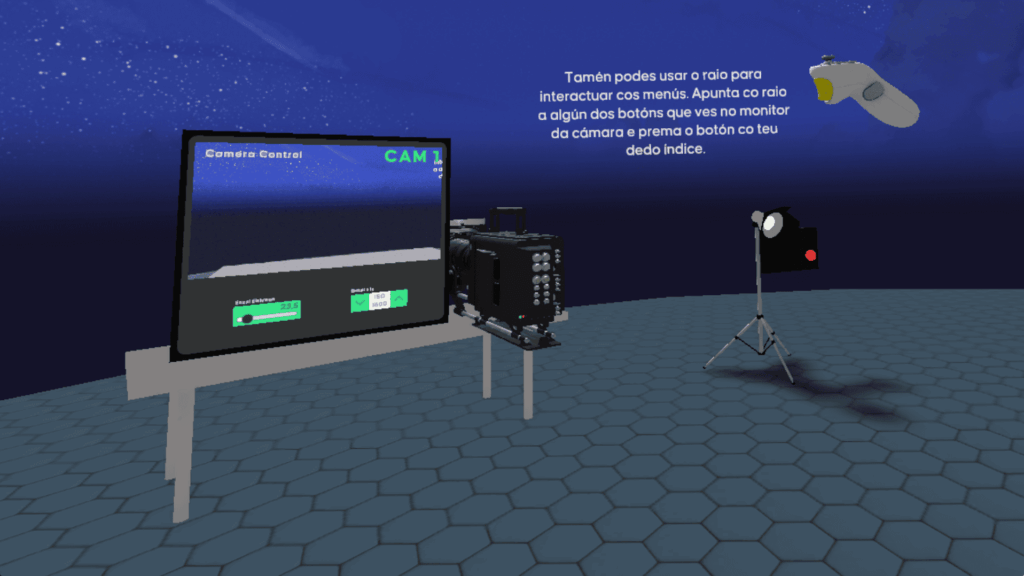
Adjust using Select on the arrow boxes:


Exposure triangle:

  • Aperture
  • Shutter
  • ISO
 

Focus & Zoom:

  • Focal Distance
  • Focus
 

Additional:

  • Multicamera
  • Power
 
Interfaz de las opciones de control de camara del software simulacro VR
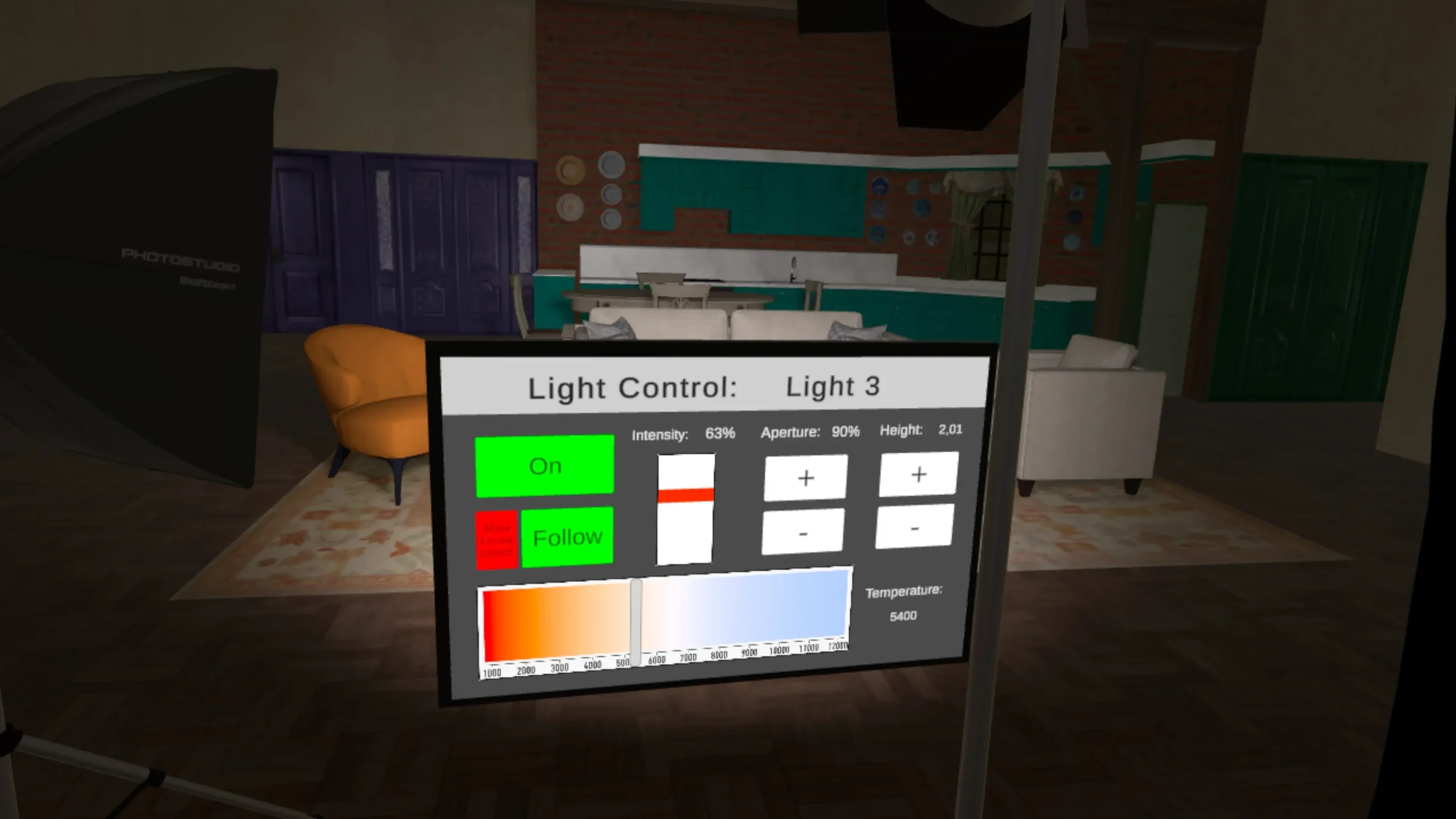
  • On / Off
  • Follow mode
  • Intensity
  • Aperture (beam angle)
  • Height
  • Temperature


Interfaz de las opciones de luz a usar en simulacro VR

Curious about

SIMULACRO?

©2026 Simulacro. All rights reserved.